


WakeBox
4.1580.00 Reviews
App Specs
- Version
- 1.2.6
- Updated On
- License
- Free
- Downloads
- 1,000,000+
- Developer
- BLYTHEWOOD NY LLC
- Categories
- Productivity
- Platform
- Android
Screenshots
 Analysis by AppCompare
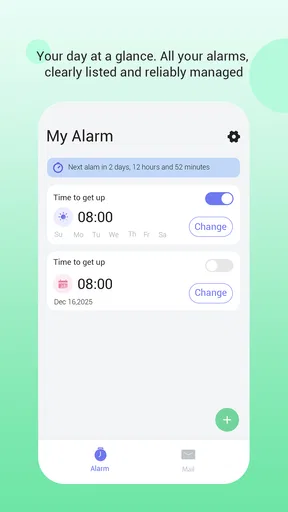
Waking up reliably sounds simple until a normal phone alarm fails at the exact moment you need it. WakeBox takes a focused approach to that problem: it is a free productivity app built around alarms, full-screen alerts, and optional email access. I found its appeal less in decoration or lifestyle coaching and more in making the alarm event difficult to overlook.
That narrow purpose is useful. Instead of treating the alarm as one small feature inside a crowded clock, calendar, or wellness app, WakeBox puts the wake-up moment first. The developer, BLYTHEWOOD NY LLC, presents it as a practical tool for people who want a dependable prompt rather than a collection of sleep statistics or motivational extras.
It is available for Android users on version 7.0 or later, and the app is free to install. Its mature seventeen-plus content classification is worth noticing before downloading, especially if you are choosing tools for a shared family device. The current release is version 1.2.6, so I would still check that your phone is running a compatible system before building an important routine around it.
How I would build a dependable WakeBox routine
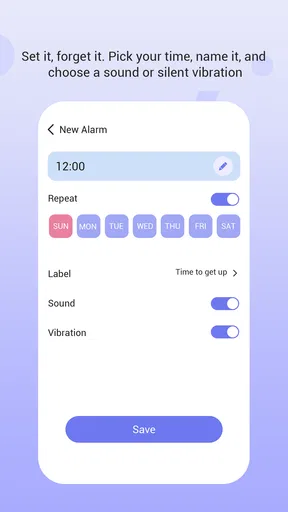
My recommended starting point is deliberately boring: create one alarm for a real obligation, choose a time that gives you enough margin, and use the app consistently for several mornings. The point is not to fill the screen with alarms. It is to learn how WakeBox behaves on your particular phone and whether its alert style is strong enough for your sleeping habits.
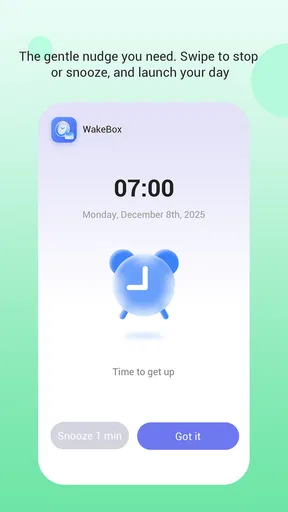
The full-screen alert is the defining part of the experience. A small notification can disappear among messages, reminders, and background activity, while a full-screen interruption is much harder to miss. That makes the app especially suitable for early work shifts, airport departures, school mornings, medication routines, or any situation where waking up is more important than having a visually elegant clock.
I would begin with a single recurring schedule rather than several overlapping alarms. A chain of alarms can feel reassuring, but it can also train you to dismiss the first few automatically. A cleaner pattern is one primary WakeBox alarm, followed by a second one only when there is a genuine reason to need backup. This keeps the alert meaningful instead of turning every morning into a sequence of taps.
A realistic example is a person who works an early shift and normally keeps the phone beside the bed. The night before, that person can confirm the alarm time, leave the device where its alert can be noticed, and avoid changing the schedule at the last minute. In the morning, the full-screen presentation gives the alarm a clearer presence than an ordinary status-bar reminder. After dismissing it, the useful habit is to stand up immediately rather than negotiate with the snooze button or return to bed.
Worth Reading Before You Choose

EA SPORTS FC Mobile 26 Is a Bigger Football Game, but It Takes Time

Flipboard Shows What News Apps Must Do Beyond the Feed

Switching to Android Auto Means Rethinking Your Driving Routine

Google Calendar Makes a Crowded Week Easier to Manage

Ludo King Makes the Most of the Minutes Between Plans

Baby Panda World Brings Quick Play to Modern Phones, but Its Game Library Feels Busy
That last step is not a feature claim; it is where the app either becomes useful or does not. WakeBox can make the alert more visible, but it cannot replace a sensible bedtime, a charged phone, or a habit of responding to the alarm. I see it as a strong trigger for a routine, not as a complete sleep-management system.
Settings I would check before trusting it
The first practical check is the alert itself. Set a test alarm for a convenient time and observe whether the full-screen presentation is easy to act on when the phone is locked or sitting away from your hand. This is more valuable than assuming every Android phone handles alarms identically. Device software, lock-screen behavior, and notification controls can affect how any alarm app feels in daily use.
I would also inspect the app’s notification and system permissions during setup. WakeBox’s purpose depends on being allowed to interrupt you at the right moment, so a quiet notification setting or an aggressive battery-saving rule could undermine the experience. I would not disable broad phone protections casually, but I would make sure the app is not being treated as disposable background software.
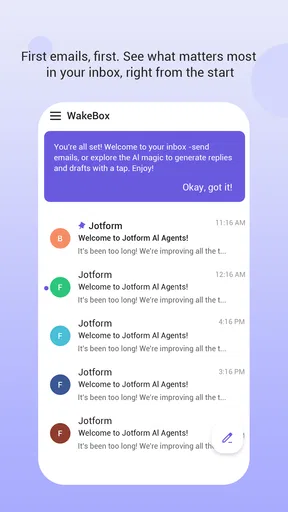
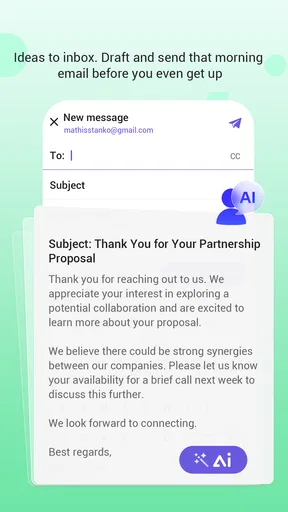
The optional email access deserves a deliberate decision rather than an automatic tap. If you only need a local wake-up alarm, you may prefer to keep the setup as minimal as possible. If email access supports a workflow you actually want, consider whether that connection adds value to your routine. My rule is simple: grant optional access only when I can name the specific problem it solves.
This is one of the less obvious strengths of the app’s focused design. It encourages you to separate the essential alarm function from optional account-related behavior. Someone who wants a straightforward morning alert can approach setup differently from someone who wants email involved in the way they organize reminders. That choice should be made based on habit, not curiosity.
Next, check the phone’s volume and sound profile before the first important morning. An alarm is only dependable if the device can make itself heard or otherwise noticeable. I would run a daytime test with the phone in the same place and under a similar sound setting to the one used overnight. That small test can reveal a practical problem before it becomes a missed appointment.
Placement matters too. A full-screen alert is more effective when the phone is visible or within easy reach, but placing it directly under the pillow or at the far side of the room creates different trade-offs. Beside the bed is convenient but makes automatic dismissal easy. Across the room encourages movement but may be less suitable if you need to respond quietly or share the room with someone else.
For people who rely on a phone’s battery-saving mode, a pre-sleep charging check is part of the WakeBox routine. I would not treat any alarm app as a substitute for keeping the device powered. The best workflow is to make charging, alarm confirmation, and phone placement a short sequence completed at the same time every night.
Faster patterns for repeat users
Once the basic alarm works, the fastest approach is to reduce decisions. Keep the same phone location, review the next alarm at the same point in the evening, and avoid rebuilding the schedule from scratch unless your week has changed. Repetition makes the tool less noticeable, which is a good thing: the app becomes part of the routine instead of another task competing for attention.
I also recommend separating alarms by purpose. A workday alarm should not be confused with a weekend reminder or a one-time event. If your schedule changes often, pause and verify the next active alarm rather than assuming yesterday’s pattern still applies. The risk here is not that WakeBox is complicated; it is that a simple alarm can be aimed at the wrong morning when a person edits it while tired.
One useful habit is to pair the alert with an immediate physical action. Put water, clothing, or the first item needed for the morning somewhere that requires standing up. WakeBox handles the interruption, while the surrounding setup makes dismissal less likely to become a return-to-sleep button. This is the kind of small workflow improvement that matters more than adding a large number of alarms.
For a household with different schedules, I would avoid treating one phone as a universal alarm station unless everyone understands who owns the active schedule. A full-screen alert is intentionally prominent, so a shared device can create confusion. WakeBox is better suited to a personal phone where the owner controls the timing, sound environment, and response.
The optional email path may also appeal to users who organize parts of their day through email, but I would keep the alarm workflow independent from it whenever possible. If an email-related step becomes necessary for a basic wake-up, the setup is no longer as simple as it needs to be. The strongest pattern is to let the core alarm remain dependable even when you are not actively managing messages.
Another efficient pattern is to test changes during the day. If you alter the alarm time, move the phone, or change notification behavior, do not wait until a critical morning to discover the result. A short test lets you confirm that the full-screen alert appears in the way you expect. This is particularly important for users who switch between work profiles, silent modes, or different overnight charging arrangements.
WakeBox has earned a strong public reception, with an average rating of 4.5 from roughly one and a half thousand ratings and more than a thousand written reviews. Its reach also extends beyond a small niche, with over a million installs. I take those figures as evidence that the focused alarm idea resonates, not as a promise that the app will behave identically on every phone or suit every sleeping style.
Where the focused design reaches its limits
The same simplicity that makes WakeBox approachable may disappoint users looking for a complete sleep platform. I would not choose it primarily for sleep-stage analysis, bedtime coaching, extensive habit tracking, or a broad calendar system. Its value is concentrated in the alarm moment, so people who want a large set of connected planning tools may be happier with a clock, calendar, or wellness app designed around those functions.
It is also not automatically the best choice for extremely heavy sleepers who need a physical challenge before they can get out of bed. A prominent full-screen alert is more forceful than an ordinary notification, but it remains a phone-based prompt. If your routine requires puzzles, movement verification, a separate bedside device, or another person’s intervention, you should compare WakeBox with tools built specifically for those needs.
There is a social limitation as well. Full-screen alerts are excellent when visibility is the goal, but they can be disruptive in a shared bedroom, a quiet workplace, or a situation where another person sleeps on a different schedule. In those cases, a quieter alarm method or a wearable may be more considerate. WakeBox is strongest when the alarm’s urgency belongs to the phone owner.
The optional email access can introduce unnecessary complexity for users who only want a local alarm. I appreciate that it is optional, because it lets a privacy-conscious or minimalist user keep the workflow narrower. Still, anyone who dislikes connecting everyday utilities to email should decide early whether that part of the app has a real place in their routine.
Compatibility is another practical boundary. The minimum requirement of Android 7.0 or later covers many devices, but an operating-system requirement alone does not guarantee identical lock-screen, battery, audio, or notification behavior across manufacturers. That is why I consider the daytime test essential. The app should earn trust through a successful trial on your own phone, not through assumptions based on another person’s experience.
I would also avoid using WakeBox as the only safeguard for a once-in-a-lifetime event until it has proved itself in ordinary mornings. Use a second, independent reminder when missing the wake-up would have serious consequences. That is not a criticism unique to this app; it is sensible risk management for any phone alarm, especially when the phone’s charge, settings, or placement can change.
Who should use it and who should skip it
I would recommend WakeBox to someone who repeatedly misses ordinary alarms because notifications blend into the rest of the phone. It is also a good match for users who want a free productivity tool with a clear job, and for people who value an alert that takes over the screen instead of quietly appearing among other notifications.
It makes particular sense for irregular schedules when the main challenge is making the next wake-up unmistakable. A worker with changing shifts, a student with early classes, or a traveler preparing for an early departure can benefit from a focused alarm workflow, provided the schedule is checked rather than assumed.
I would be more cautious recommending it to people who want one app to manage sleep, tasks, calendars, and long-term wellness. WakeBox does not need to become that kind of product to be useful, but its focused scope means those users may end up maintaining several disconnected routines. A broader clock or planning app could be more convenient if integration matters more than alert prominence.
I would also suggest another option for anyone who needs a silent wake-up, a wearable vibration, or a challenge that makes dismissal difficult. WakeBox’s central advantage is the noticeable full-screen interruption, so choosing it for a situation that requires the opposite behavior would be a mismatch.
My verdict after building the habit around it
WakeBox works best when I treat it as a dependable trigger rather than a magical solution. The full-screen alert gives the alarm more presence than a routine notification, and the free price makes it easy to test without committing to a subscription. The optional email access adds flexibility for some workflows, while still allowing a simpler approach for people who only want the core function.
My strongest recommendation is to spend a few minutes on setup quality: test the alert, check notification behavior, confirm the sound profile, keep the phone charged, and choose a placement that supports the action you want after waking. Those steps are more important than creating a complicated schedule. Experienced users will get the most from WakeBox by combining its prominent alert with repeatable evening and morning habits.
The app is not a replacement for a dedicated sleep system, a wearable, or a physical backup when the stakes are unusually high. It can also be too disruptive in shared spaces. But for a personal Android phone and a user who wants a clear, hard-to-ignore wake-up prompt, I find the focused design convincing.
With its current version, broad installation base, and practical emphasis, WakeBox is an easy app to try for anyone frustrated by alarms that disappear into the background. Its real strength is not the number of options; it is turning the alarm into an event you are more likely to notice and act on. If that is the problem you are trying to solve, I would put it ahead of a conventional clock app. If your priority is deep sleep tracking, silent waking, or all-in-one planning, I would choose a more specialized alternative instead.
Pros
- Gradually increasing volume makes waking up feel less abrupt.
- Offers multiple alarm sounds to suit different morning preferences.
- Simple interface makes creating and managing alarms quick.
- Useful for users who prefer a gentler alternative to standard alarms.
- Can help establish a more consistent morning routine.
Cons
- The gradual wake-up effect may be too subtle for heavy sleepers.
- Some features may require extra permissions or device settings.
- Alarm reliability can depend on battery optimization restrictions.
- Limited customization may disappoint users seeking advanced scheduling.
- Background operation could have a noticeable effect on battery life.
FAQs for WakeBox
What is WakeBox and how does it work?
WakeBox is an alarm and wake-up app designed to make mornings more engaging than a standard ringtone. After setting a wake-up time, you can usually choose an alarm sound, adjust volume and vibration behavior, and configure repeat schedules. Depending on the version available on your device, it may also offer motivational content, challenges, or customizable wake-up options to help you get out of bed.
Does WakeBox work if my phone is locked or the app is closed?
WakeBox is intended to sound alarms even when the phone is locked, but its reliability depends on your device settings and operating system. Android and iOS may restrict background activity, battery usage, notifications, or alarm permissions. Before relying on it, allow notifications, disable battery optimization for the app when applicable, and test an alarm while the phone is locked. Keeping the device sufficiently charged is also recommended.
Can I customize WakeBox alarms and create repeating schedules?
The app is useful for people who need different wake-up routines because alarms can generally be adjusted for specific times, days, sounds, and vibration preferences. You should review each alarm individually after creating it, especially when setting weekday or weekend schedules. Some customization options may vary according to the installed version, device platform, or whether certain features require an in-app purchase.
Does WakeBox require an internet connection or access to personal data?
A basic alarm normally needs to work without a continuous internet connection, although some WakeBox features may require connectivity for downloading sounds, displaying content, synchronizing settings, or processing account-related information. Before installation, check the permissions requested by the current version. Avoid granting access that is not necessary for alarms, and review the app’s privacy policy if you are concerned about analytics or personal information.
Is WakeBox free to download, and are there advertisements or paid features?
WakeBox may be available as a free download, but the exact business model can differ between Android and iOS and may change with updates. The free version could include advertising, limits on alarm sounds or advanced options, while premium features may be offered through subscriptions or one-time purchases. Check the store listing for the current price, trial conditions, and cancellation details before confirming any payment.


